What Does Collate Mean When Printing? A Clear, Practical Guide
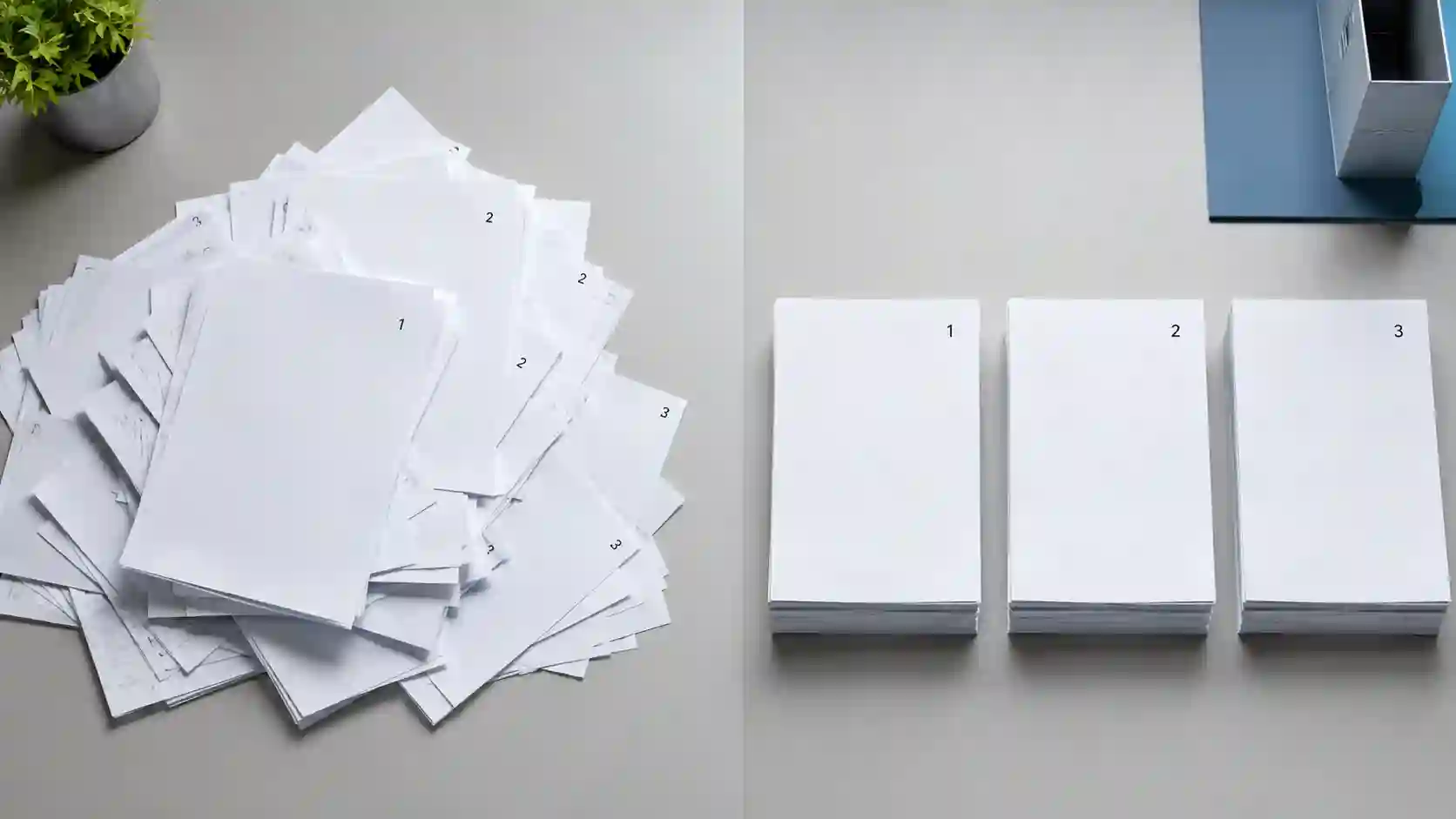
You hit “Print” on a 20-page report. You need five copies. Halfway through, you realize the machine spits out twenty page ones, then twenty page twos. Now you face a mountain of paper and a tedious hand-sorting marathon. That frustration disappears the moment you check one tiny box labeled “Collate.”
Understanding what does collate mean when printing transforms a chaotic paper mess into a neatly ordered, ready-to-use stack. This guide explains the function, shows exactly when to use it, and saves you from the dreaded manual page shuffle.
What Does Collate Mean When Printing? A Straight Answer
The simplest definition: Collate means the printer arranges multiple copies of a multi-page document in sequential order. You request three copies of a 5-page file. With collate turned on, the output lands as Copy 1 (pages 1-2-3-4-5), Copy 2 (1-2-3-4-5), Copy 3 (1-2-3-4-5). Turn it off, and you get three page ones, three page twos, three page threes, and so on.
The term originates from the Latin collatus, meaning “brought together.” Modern printers bring your pages together in the exact order a human would. Knowing what does collate mean when printing shifts you from waste to workflow efficiency instantly.
Collated vs. Uncollated Printing: The Core Difference
Seeing the distinction side-by-side makes the concept stick. Picture a 3-page proposal. You need three sets.
Collated Output (Checkbox ON)
- Set 1: Page 1, Page 2, Page 3
- Set 2: Pages 1, 2, and 3
- Set 3: Page 1, Page 2, Page 3
Grab each set from the tray and staple. Done.
Uncollated Output (Checkbox OFF)
- Stack 1: Page 1, Page 1, Page 1
- Stack 2: Page 2, Page 2, Page 2
- Stack 3: Page 3, Page 3, Page 3
You must manually take one sheet from each stack to build a single copy. For five copies of a ten-page document, you handle 50 pages individually.
| Feature | Collated Printing | Uncollated Printing |
| Page Order | Complete sets (1,2,3… 1,2,3…) | Grouped by page (1,1,1… 2,2,2…) |
| Manual Sorting | Zero | High |
| Best Use Case | Reports, proposals, booklets | Posters, flyers, single-form pads |
| Time Investment | Print-and-go | Print-then-sort |
| Stapling/Finishing | Ready for immediate binding | Requires assembly first |
This table clarifies exactly what does collate mean when printing for daily decisions. Select collated for finished document sets; select uncollated when you need stacks of identical pages.
How the Collate Function Actually Works Inside Your Printer
A printer does not magically know your intention. When you activate collate, two processes kick in. First, the printer’s memory, or RAM, receives the entire document from your computer. Second, the internal processor organizes the data to print page one of copy one, page two of copy one, through the last page, then loops back to page one of copy two. This demands significantly more processing power than uncollated printing.
Uncollated printing allows the machine to read page one once, print it repeatedly, then forget it and move to page two. Collate forces the printer to retain all pages in memory simultaneously. Older or entry-level printers slow down noticeably when printing large collated jobs.
If you ever wondered what does collate mean when printing on a technical level, think of it as “print from memory in repeating sets” versus “print one page, rinse, repeat.”
When You Absolutely Need Collated Printing
Use the collate setting without hesitation in these situations:
- Multi-copy business reports: Hand each stakeholder a complete, ready-to-read document.
- Training manuals and booklets: Pages flow sequentially; binding takes seconds.
- Legal or financial packets: Maintain strict document integrity per copy set.
- School assignments and presentations: Walk into the room with professionally organized handouts.
- Event programs or agendas: Distribute finished sets to attendees on the spot.
Failing to collate these items creates extra work and looks unprofessional. A report handed over with pages out of sequence signals carelessness. Define what does collate mean when printing in a professional context simply: it means respect for your reader’s time and attention.
When Uncollated Printing Is the Smarter Move
Collate is not always your friend. Specific print jobs function better uncollated:
- Single-page flyers or posters: You need 500 copies of page one only. Collate changes nothing here.
- Multi-part forms (NCR forms): Carbonless forms often come as pre-collated sets. However, if you print on individual colored sheets, uncollated grouping by color streamlines assembly.
- Classroom worksheets: Print 30 copies of a math drill, then 30 of the answer key, keeping them separate by stack.
- Page-specific paper changes: You need page one on letterhead and the rest on plain paper. Print page one uncollated on letterhead, swap paper, then print remaining pages collated or uncollated as needed.
Understanding what does collate mean when printing empowers you to break the “always collate” habit and choose the efficient path for each job. Blindly checking collate for every task wastes the feature’s real benefit.
Step-by-Step: Enabling Collate in Windows, Mac, and Apps
The checkbox hides in plain sight. Find it quickly with these paths.
Microsoft Word (Windows)
- Click File > Print.
- Under “Settings,” locate the dropdown that often says “Print One Sided” or “Copies.”
- Look for “Collated” / “Uncollated” options. Select “Collated.”
- Enter number of copies, hit Print.
Microsoft Word (Mac)
- File > Print.
- Check the “Collate” box directly below the Copies field.
- Ensure the preview shows your intended sequence.
Adobe Acrobat (PDF)
- File > Print.
- In the “Copies” section, check the “Collate” box.
- The preview icon changes to reflect collated sets.
Google Chrome / Browser Printing
- Ctrl+P or Cmd+P.
- Expand “More settings.”
- Check the “Collate” box under the copies option.
Mastering this quick action answers what does collate mean when printing practically, making your daily workflow faster. The setting takes one second to click and saves dozens of minutes sorting.
Collate and Double-Sided Printing: A Crucial Combination
Combining collate with duplex (double-sided) printing creates finished booklets effortlessly. Imagine a 12-page quarterly report. You need ten double-sided, collated copies.
The printer executes a precise dance: Side one of page one, then side two of page one on the reverse, followed by side one of page two, side two of page two, all the way through, for each of the ten copies. The output tray holds ten complete, double-sided booklets. Stapling the spine finishes the job.
Failing to check collate during duplex printing produces chaos: ten copies of page one double-sided, then ten copies of page two double-sided. Reassembling that mess into correct booklets destroys the time duplex printing promised to save.
When anyone asks what does collate mean when printing combined with duplex, the answer is “finished, bound-ready documents without human intervention.”
The Price of Ignoring This Setting: Time and Money
Calculate the real cost. Manually sorting three copies of a 15-page document takes roughly four to six minutes. Do that three times a week for a year. You lose over 15 hours annually to a task a printer setting eliminates completely.
For an office manager earning $30 per hour, that represents $450 of wasted labor. The software and printer manufacturers already built the solution.
Free automation that is idle is represented by the collate checkbox. When management truly grasps what does collate mean when printing in financial terms, they mandate its use across departments.
Common Collating Myths and Misunderstandings
Myth 1: Collate organizes pages alphabetically. False. Collate preserves the original page order of your file. It does not sort text or rearrange content.
Myth 2: All printers collate automatically. False. Most printers default to uncollated to minimize memory usage. You actively select collate each time.
Myth 3: Collate is only for office laser printers. False. Home inkjet printers, photo printers, and even label printers with multi-page document support offer a collate option in the driver.
Clarifying these misconceptions solidifies a true understanding of what does collate mean when printing, ensuring users stop blaming the machine for human setting errors.
A Quick History of Collating: From Monks to Machines
Long before laser printers, collating was manual, painstaking work. Medieval scribes assembled hand-copied manuscripts page by page. The printing press allowed mass production, but pages still required gathering by hand in bindery departments.
The first mechanical collators appeared in the mid-20th century, using suction arms and rotating bins. Digital printing then shifted collation from physical machinery to software logic inside the printer processor.
Today, a microchip performs in seconds what took monks weeks. This evolution underscores why knowing what does collate mean when printing connects you to a centuries-long pursuit of ordered knowledge distribution.
Expert Tips for Flawless Collated Printing
Pre-flight your document. Verify all pages exist in correct order, upside down if needed, and with proper margins. Collate amplifies errors across every copy set.
Match paper capacity. A 50-page document times ten copies equals 500 sheets. Confirm your paper tray holds enough stock to avoid a mid-job reload that disrupts collation sequence.
Test with one copy first. Print a single collated set before running 20. Check for orientation glitches or missing graphics.
Update printer drivers. Collate functions depend on driver-to-printer communication. Outdated drivers cause dropped settings or memory overflow errors.
Use “Print as Image” for complex files. Large graphics or embedded fonts can choke printer memory. Printing as an image simplifies the data stream, letting collate operate reliably. Per Microsoft’s official documentation, this resolves spooling failures on large collated jobs. (Source: Microsoft Support, “Fix printer problems in Windows”)
Frequently Asked Questions
What does collate mean when printing in the simplest terms?
It means your printer delivers multi-page documents as complete, ordered sets. Request five copies of a 10-page file, and you receive Copy 1 through Copy 5, each in 1–10 sequence, ready to use immediately.
Does collated printing take longer?
Yes, often noticeably. The printer processor arranges all pages in memory and prints in sequential loops. This demands more computing resources than uncollated printing, where the machine repeats one page rapidly, then moves on.
When should I definitely turn off collate?
Turn collate off when printing multiple copies of a single-page item, when you need page stacks for assembly-line work, or when printing on different paper stocks for specific pages within a document.
Is collate available on all printers?
Nearly all modern printers, including budget home inkjets, include a collate option in their print driver settings. Some ultra-compact portable printers may lack it due to minimal onboard memory.
What does collate mean when printing double-sided?
It means the printer outputs complete double-sided booklets in sequence. Copy 1 emerges fully duplexed from first to last page, then Copy 2 follows. No manual flipping or reordering is needed.
Why did my collated job print incorrectly?
Corrupted print drivers, insufficient printer memory, or a document with mixed page orientations usually cause failures. Update your driver from the manufacturer’s official site (HP, Canon, Epson), clear the print queue, and send the job again.
Print Smarter, Not Harder
A single checkbox separates a polished, professional document stack from a disordered pile demanding minutes of dull hand-sorting. Every time you check “Collate,” you instruct a precision machine to serve you finished sets, exactly as intended, while you handle higher-value work.
The next time your colleague stares at a messy stack of printouts, you can answer exactly what does collate mean when printing and demonstrate the fix in two clicks.
Open a multi-page file right now, find that collate option in your print dialog, and test the difference with two copies. Experience the immediate, tangible order that transforms a routine chore into a one-step success.